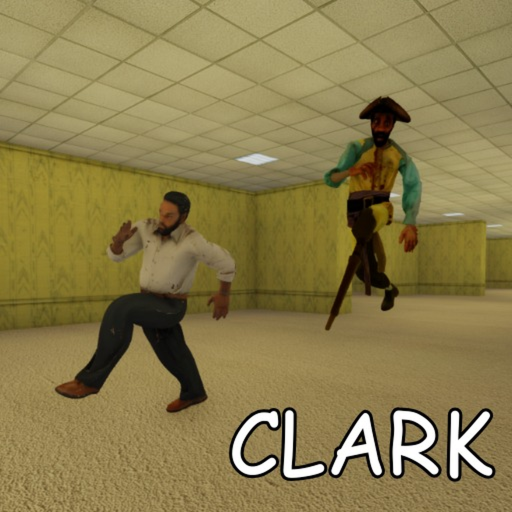
Clark Huss rooms Controls
Default Roblox PC controls for Clark Huss rooms — WASD movement, Shift sprint, E interact, and horror-specific tips for flashlight and camera discipline.
Horror games are won or lost in half-second input windows — the moment you fumble sprint, miss an interact prompt, or snap camera too slowly when Clark rounds a yellow corner. Clark Huss rooms builds on Roblox’s default control scheme with minimal custom rebinding during early access, which is good news: if you play other Roblox experiences, your muscle memory already transfers. This hub documents PC keyboard and mouse bindings, explains how they interact with Husrooms mechanics, and links to mobile controls for touch players and console / Xbox controls for gamepad runners.
Default PC bindings
Clark Huss rooms uses standard Roblox first-person controls unless mothem_XD adds custom menus in future patches. Confirm bindings in Roblox Settings → Keyboard & Mouse if you remapped globally.
| Action | Default key | Notes for Husrooms |
|---|---|---|
| Move forward | W | Keep movement smooth; erratic strafing increases audio footprint |
| Move backward | S | Backpedal sparingly — slower and louder in many horror maps |
| Strafe left / right | A / D | Use for peeking junctions without full body exposure |
| Jump | Space | Situational; jumping can telegraph position in tight halls |
| Sprint | Left Shift (hold) | Stamina-dependent; core to survive Clark distances |
| Interact | E | Doors, prompts, and future items — press before panic sprinting away |
| Flashlight toggle | Often click or tool key | Verify in-game tooltip; manage battery per flashlight guide |
| Camera look | Mouse | Low sensitivity helps steady scanning down long corridors |
| Menu / pause | Esc | Roblox overlay; may not pause live horror runs |
Exact flashlight binding can vary by update — check the in-game control hint on spawn during first run preparation.
Why defaults matter in Rooms-style horror
GMOD Rooms-inspired design emphasises commitment: once your squad opens the first door, the server locks and rescue is impossible. That means you cannot pause to rebind keys mid-run. Learn defaults before joining public lobbies where multiplayer coordination assumes everyone shares the same interact key culture (E on PC).
Roblox defaults also keep tutorial clips portable. Creators referencing “Shift to sprint” help PC audiences without per-game key charts — useful while Husrooms is still in early access.
Sprint discipline (Shift)
Left Shift sprint is the highest-skill default binding. Overuse attracts entity attention in Backrooms-style audio design; underuse leaves you caught in open straightaways when Clark patrols intersect.
Training progression:
- Walk by default in unexplored segments.
- Sprint only on agreed callouts or confirmed clear distances from map layout study.
- Release Shift before corners to reduce footstep tail audio — see entity sound guide for cues you should hear instead of mask.
Sprint pairs with camera stability: whipping mouse while sprinting wastes stamina visually even when mechanics focus on audio.
Interact (E) and door discipline
E executes interact prompts — critical for the first door that triggers run lock. Squads should agree verbally before anyone presses E, because accidental early starts ruin friends still reading Roblox loading tips.
After lock-in, E may govern loot prompts, levers, or future puzzle objects mothem_XD adds. Always tap E once deliberately rather than spamming; spam can queue unintended interactions in Roblox prompt stacks.
If prompts fail, check proximity and camera angle — Roblox interact rays require reasonable facing. This is not a bug unique to Husrooms but appears often in first-person horror.
Movement (WASD) and map readability
Procedural yellow halls reward players who read geometry instead of minimaps Husrooms may not provide. WASD strafing lets you slice peek around corners without fully committing — a technique borrowed from competitive shooters that translates well to entity tier awareness.
Avoid perpetual backward movement (S) unless covering retreat for teammates; it is slower and can funnel squads into dead-end segments described on the map hub.
Mouse sensitivity and FOV
Roblox allows mouse sensitivity adjustment globally. Lower sensitivity smooths micro-corrections when tracking distant silhouettes — important before confirming whether a flicker is Clark or fluorescent noise.
Field of view depends on Roblox client settings and platform caps. Wider FOV helps peripheral awareness at the cost of distant target clarity. Test values during low-stress spawn areas, not during chases.
Flashlight and tool keys
Flashlight management separates Husrooms runs from generic Roblox obbies. Toggle habits should be automatic before you enter high-threat zones. Coordinate with squadmates so only necessary cones stay active — overlapping beams waste battery faster.
When mothem_XD adds items beyond early access scope, tool slots may map to number keys 1–9 per Roblox conventions. This hub will note confirmed bindings on updates days.
Voice and communication
Roblox voice chat (where enabled and age-appropriate) uses separate Roblox bindings — not remapped by Husrooms. Discord push-to-talk keys should not conflict with Shift or E on compact keyboards. Communication falls under multiplayer strategy tiers as much as mechanical controls.
Controller on PC and console
Some PC players use Xbox controllers through Roblox’s gamepad support. Console runners on Xbox and PlayStation use the same Roblox gamepad layer. Face buttons map to A jump, B back in menus, triggers for camera in some configs — verify in Settings → Gamepad. Sprint typically maps to LT / L2 hold on Xbox and PlayStation. Read the dedicated console and Xbox controls page for platform-specific horror tips and squad coordination notes.
Before your next run checklist
- Confirm Shift, E, and movement keys in Roblox settings.
- Set mouse sensitivity for steady scanning.
- Test flashlight toggle in spawn safe zone.
- Read mobile controls if alternating devices.
- Review controls-adjacent guides for Rooms mechanics.
Related pages
- Mobile controls — touch layouts and sensitivity for phones/tablets.
- Console / Xbox controls — gamepad sprint, interact, and horror discipline.
- How to play — mechanics layered on top of defaults.
- First run guide — when to press E on the first door.
- Scripts hub — why executors are not a control upgrade.
Defaults are boring until Clark makes them exciting. Master Roblox’s baseline and Husrooms becomes about decisions — not mis-clicks.
Frequently Asked Questions
Quick answers to the most common questions.
What key do you sprint with in Clark Huss rooms?
Default Roblox PC sprint is Left Shift (hold). Confirm in Roblox Settings if you remapped globally.
How do you interact with doors?
Default interact is E on PC when facing prompts. Agree with your squad before opening the first door.
Can I rebind keys inside Husrooms?
Early access relies on Roblox global bindings. Adjust keyboard settings in the Roblox client.
What is the flashlights key?
Often mouse click or equipped tool key — verify the on-screen hint at spawn; see the flashlight batteries guide.
Do controls differ on mobile?
Yes. Touch buttons replace WASD and Shift. Read our dedicated mobile controls page.
Does Husrooms support controller on PC?
Roblox gamepad support applies. Some horror peeks are harder than keyboard-mouse for fine aim.